
IPTV Smarters: A Complete Guide to Setup and Use
IPTV Smarters has become one of the go-to apps for people who want to watch television over the internet instead of relying on cable or satellite. It’s built to be simple to use while still giving viewers access to a huge range of live channels, movies, and TV series, all delivered straight through an internet connection. Here’s a full rundown of what the app does and how to get it running on almost any device.
What Exactly Is IPTV Smarters?
At its core, IPTV Smarters is a media player made specifically for streaming live TV, on-demand video, and series content. It works differently than a normal cable box: instead of pulling a signal from a satellite or cable line, it streams everything through standard internet protocols (that’s what “IPTV” — Internet Protocol Television — means). The result is usually more flexibility and a lower price tag than traditional TV packages.
It’s important to understand that the app itself is just the player — it doesn’t supply any channels or shows on its own. Its job is to link up with whatever IPTV subscription you already have, giving you a clean, easy-to-navigate way to watch that content.
A few standout features:
- Ability to stream on up to 4 screens at once
- Built-in EPG (Electronic Program Guide)
- Catch-up TV, so you can watch shows that already aired
- A favorites list for quick access to what you watch most
- Parental control settings
- Support for multiple languages
- Custom playlist options
There are two main versions of the app — IPTV Smarters Pro, the original release, and IPTV Smarters Player, a newer version with some extra features. Both do essentially the same job, just with slightly different interfaces and capabilities.
Which Devices Does It Work On?
Part of what makes IPTV Smarters so popular is how widely it’s supported:
- Android phones and tablets
- Android TV boxes
- Amazon Fire TV and Firestick
- Windows computers
- Macs
- iPhones and iPads
Because it runs on nearly everything, it’s a solid pick no matter what kind of device you already own.
Installing IPTV Smarters Pro
On Android
- Open the Google Play Store
- Search “IPTV Smarters Pro”
- Tap install
- Launch the app once it’s finished downloading
If you’d rather not use the Play Store, the APK file can also be downloaded directly from a trusted source.
On Amazon Firestick
- From the Firestick home screen, tap the search icon
- Search “IPTV Smarters Pro” and select it
- Choose “Download” or “Get” to install it
- Open the app once installed
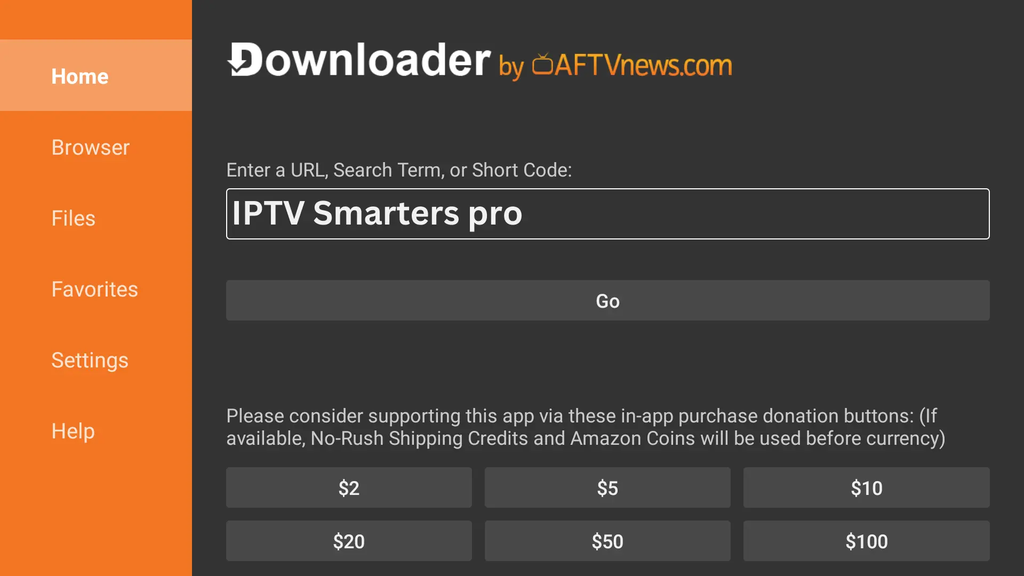
If it doesn’t show up in the Amazon App Store, you can sideload it instead:
- Turn on “apps from unknown sources” in your Firestick settings
- Install the Downloader app from the Amazon App Store
- Open Downloader and paste in the APK link for IPTV Smarters Pro
- Follow the prompts to finish installing
On Windows
Since IPTV Smarters Pro is built for Android, PC users need an emulator:
- Install an Android emulator such as BlueStacks or NoxPlayer
- Open it and sign in with a Google account
- Go to the Play Store inside the emulator
- Search for and install “IPTV Smarters Pro”
- Run the app from within the emulator
On Mac
Same idea as Windows:
- Install a Mac-compatible emulator like BlueStacks
- Sign in with a Google account
- Open the Play Store
- Search for and install “IPTV Smarters Pro”
- Launch it through the emulator
On iOS
- Open the App Store
- Search “IPTV Smarters” (the exact name may differ slightly)
- Download and install it
- Open the app to start setup
Connecting the App to Your Subscription
Once installed, the app needs to be linked to an actual IPTV service — providers like IPTV Gateway, BrixIPTV, or My Abonnement IPTV are examples of companies that sell these subscriptions.
Option 1: Xtream Codes API Login (most common)
This is the method most providers push people toward these days, since it automatically sorts content into Live TV, Movies, and Series categories.
- Open IPTV Smarters Pro
- Choose “Login with Xtream Codes API”
- Fill in the details your provider sent you:
- A name for the list (anything you like, e.g. “My TV”)
- The username from your provider’s email
- The password from your provider’s email
- The portal URL (something like
http://line.provider.com:80)
- Tap “Add User” to connect and load your channels
Option 2: M3U Playlist
- Open the app
- Select “Add M3U Playlist”
- Give the playlist a name
- Paste in the M3U URL your provider gave you
- Add the EPG URL too, if you have one
- Tap “Add” to save it
Option 3: QR Code
Some providers make setup even faster with a QR code:
- Open the app
- Choose the QR scanning option
- Scan the code your provider gave you
- The subscription configures itself automatically
Getting Around the Interface
Once it’s set up, the app is organized into a few clear sections:
- Live TV — channels sorted by country or genre, with an EPG showing what’s on now and next
- VOD — on-demand movies, usually grouped by genre
- Series — TV shows organized by season and episode
- Catch-Up — replay content on channels that support it
- Favorites — quick access to whatever you’ve bookmarked
- Settings — player options, EPG timeshift, parental controls, language, and stream format preferences
Getting the Best Performance
A few things that make a real difference:
- Internet speed — aim for at least 10Mbps for HD, and 25Mbps or more if you’re streaming in 4K
- Keep it updated — running the latest version helps with both performance and security
- Buffer settings — a higher buffer helps on slower connections, though it adds a bit of a delay before playback starts
- External players — VLC or MX Player can sometimes perform better than the app’s built-in player, and IPTV Smarters lets you switch to them
- EPG refresh — set it to update regularly so program listings stay accurate
Fixing Common Problems
Streams won’t load
- Check your internet connection
- Confirm your subscription is still active
- Try a different stream format (HLS or MPEGTS)
- Restart the app
Constant buffering
- Bump up the buffer size in settings
- Close other apps or devices using your bandwidth
- Switch to a wired Ethernet connection if possible
- Reach out to your provider — the issue may be on their end
EPG isn’t showing up
- Double-check the EPG URL is correct
- Force a manual refresh
- Confirm your provider actually supports EPG data for your channels
Where to Get a Subscription
IPTV Smarters Pro is useless without an actual subscription behind it. If you’re just getting started:
- Try a free trial through a provider like StreemCast IPTV before committing to anythin
Quality and channel selection vary a lot between providers, so it’s worth testing before you commit to a paid plan.
Final Thoughts
IPTV Smarters Pro strikes a good balance between powerful features and ease of use, which is a big part of why it’s caught on so widely. Whether you’re running it on a phone, a Firestick, or a laptop, the setup process is simple enough for newcomers while still offering enough depth for more advanced users.
Just remember: the app is free, but you’ll need a paid subscription from a provider to actually get content. And it’s worth sticking with providers that operate legally and respect copyright rules in your region.